Catalog Avatar Creator Beginner Guide
October 30, 2026 · 5 min read
On this page
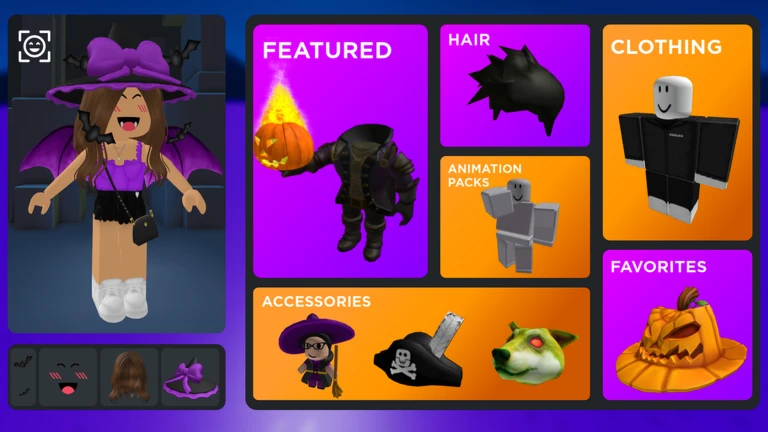
Catalog Avatar Creator lets you try on Roblox items for free before you decide whether to buy them. Start by browsing community outfits, change the pieces you do not like, and only spend Robux on items you have already seen on your avatar. Trying something on does not mean you own it.
This is an avatar editor and not a normal game. Nothing chases you and there is no level to beat, so you can go at your own pace.
What is free and what costs Robux
| Action | Cost |
|---|---|
| Trying on accessories, hats, limiteds, hair combos, bundles and animation packs | Free |
| Browsing community outfits | Free |
| Saving avatars you made in the game | Free |
| Buying an item to keep | Robux |
The official page says anything you buy in the game goes to your Roblox inventory and works in all games. Anything you only tried on stays behind when you leave.
Check the price before you click a buy button. A look made from many items can cost a lot more than it seems, since you pay for every piece you do not own.
Your first session
- Open Catalog Avatar Creator and let it load.
- Open the community outfits and look for something close to the style you want.
- Try it on, then swap single pieces from the catalog until it feels like yours.
- Save the avatar in the game so you can come back to it.
- Before buying, compare what you already own with what the look needs. You may be able to build most of it for free.
Starting from an outfit is much easier than starting with a blank avatar. The official page says the community library has more than 50 million outfits, so you will likely find a close match.
Useful chat commands
The game has about 23 chat commands, and it does not teach them in a tutorial. Click the chat at the top left, type a command, and press Enter. To see the full list in game, type /cmds.
Change your look for this session
| Command | What it does |
|---|---|
/headless |
Headless look |
/korblox |
Korblox right leg |
/korblox2 |
Korblox left leg |
/sshf |
Super Super Happy Face |
/r6 |
Switch to the R6 body type |
/r15 |
Switch to the R15 body type |
These only work during your current session. They do not save to your Roblox avatar editor, so you will not keep Headless or Korblox when you leave. They are good for seeing how a look works with those items.
R6 and R15 are worth testing. Some animations and items can look different on each body type, so check before you buy.
Move between servers
| Command | Where it sends you |
|---|---|
/vip or /private |
A private server |
/public |
A public server |
/main |
The main game server |
/voice |
A voice chat server |
/test |
A test server |
A private server helps when you want to build an outfit or take screenshots without other players walking through your shot.
Handy tools
| Command | What it does |
|---|---|
/speed 50 |
Sets your walk speed to the number you type |
/clone |
Spawns a still copy of your avatar |
/npc |
Spawns a copy that moves around |
/booth |
Spawns a display booth with text you can edit |
/self |
Shows your own Roblox profile |
/ref |
Shows an avatar reference |
/clear |
Clears the chat |
/fps |
Turns the FPS counter on or off |
/portrait |
Turns on portrait mode |
/version |
Shows or hides the version label |
/clone is the most useful one when you are designing a look. It lets you view your outfit from the outside, so you can walk around it and see how the back looks.
This command list comes from a community wiki last updated in August 2026. If one does not work, type /cmds to see the current list.
Coins and codes
The game also has Gold Coins and Silver Coins. A community site describes Gold as the premium coin used for exclusive items, and Silver as the common one. We could not confirm how each is spent, so check the in-game shop for current prices.
Codes are typed in chat with /redeem, then a space and the code. They are rare, and lists do not agree on whether the known ones still work, so do not count on them.
Star Rewards
A guide from December 2023 described a Star Rewards system, with an icon at the top left of the home screen. It said you earned one point per minute in a server and could trade points for free UGC items, and that some sold out. This is old information. We could not confirm that it still runs the same way, so look for the icon when you join and treat it as a bonus if it is there.
Limited-time items
The game often runs events and brand tie-ins. A community calendar shows past ones such as an Avatar Makeup event in April 2026 and an official Arsenal UGC event in August 2025. These come and go, so if a limited item matters to you, look for it while the event is on.
Staying safe with your Robux
- Only buy through the game's own purchase prompt or the official Roblox Marketplace.
- Do not trust anyone offering free Robux, free limiteds or cheap items through outside sites. Those offers are a common way to lose an account.
- Never share your password or a login code with another player.
- Read the name and price on the prompt before you confirm, because a purchase is hard to undo.
- Keep in mind that other players can see your avatar and talk in public servers. Use
/privateif you want to work alone.
Quick start checklist
- Join and open community outfits.
- Try on a look close to what you want.
- Swap pieces and save it.
- Type
/cmdsand test/clone. - Check what you already own.
- Buy only the pieces you still want after trying them on.